

Getting started
From a fresh install to your overlays on air, in five steps. Lights out in five minutes.
You need a Windows PC with iRacing, and OBS or vMix.
Step 1: Download
Download EDR Broadcast for Windows from this site. The Free plan needs no card.
Step 2: Install
Run the installer on the Windows PC that runs iRacing, then open the app. Join a session in iRacing and the app detects it.
On first launch, one setup dialog takes you through the licence agreement, a privacy choice (anonymous usage data, off unless you turn it on) and Getting Started, which can hand you to the guided tour. When iRacing is in a session, the title bar reads Telemetry live and the footer shows the track, session and lap. No session yet? Start in mock mode to practise.
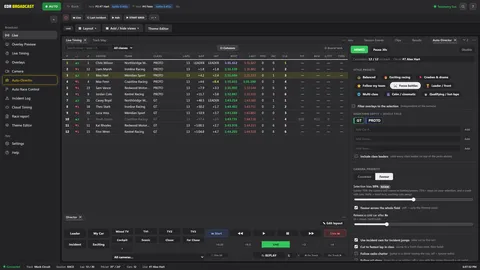
Connected: Telemetry live at the top right, the session in the footer. Sample race. Step 3: Add the browser source in OBS or vMix
In the app, open Settings, then OBS Browser Sources, and copy the Program URL. Add it to your scene as a browser source at 1920 x 1080.
- Program URL
- http://localhost:7878/#/program
- Size
- 1920 x 1080
- Frame rate
- 60 fps
One Program source composites every overlay and is lighter on memory. Add separate sources per overlay when you want OBS to layer or crop a graphic on its own; each has its own URL and recommended size in the same list. If the overlays look blurry, the source is probably still at 800 x 600: set it to 1920 x 1080 and reset the transform.
More in the browser source guide.
Step 4: Pick a theme and overlays
Choose a theme in Settings, then Themes, and switch on the overlays you want in the Overlays section.
A theme applies live, and every overlay follows it. Free includes 2 looks, EDR Broadcast and EDR Classic; Pro and above include every public theme. Detailed options for each overlay are in Settings, then Scene Config.
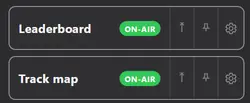
Overlays section: each overlay has its own on-air switch. Step 5: Go live
Check the Overlay Preview, then go live. Direct the cameras yourself, hand them to the Auto-Director on Pro, or mix both.
Open the Overlay Preview to confirm the overlays sit where you expect, and save your workspace layout. Make a short local recording in practice, check the timing updates and the commentary is audible, then test the feed on your platform.
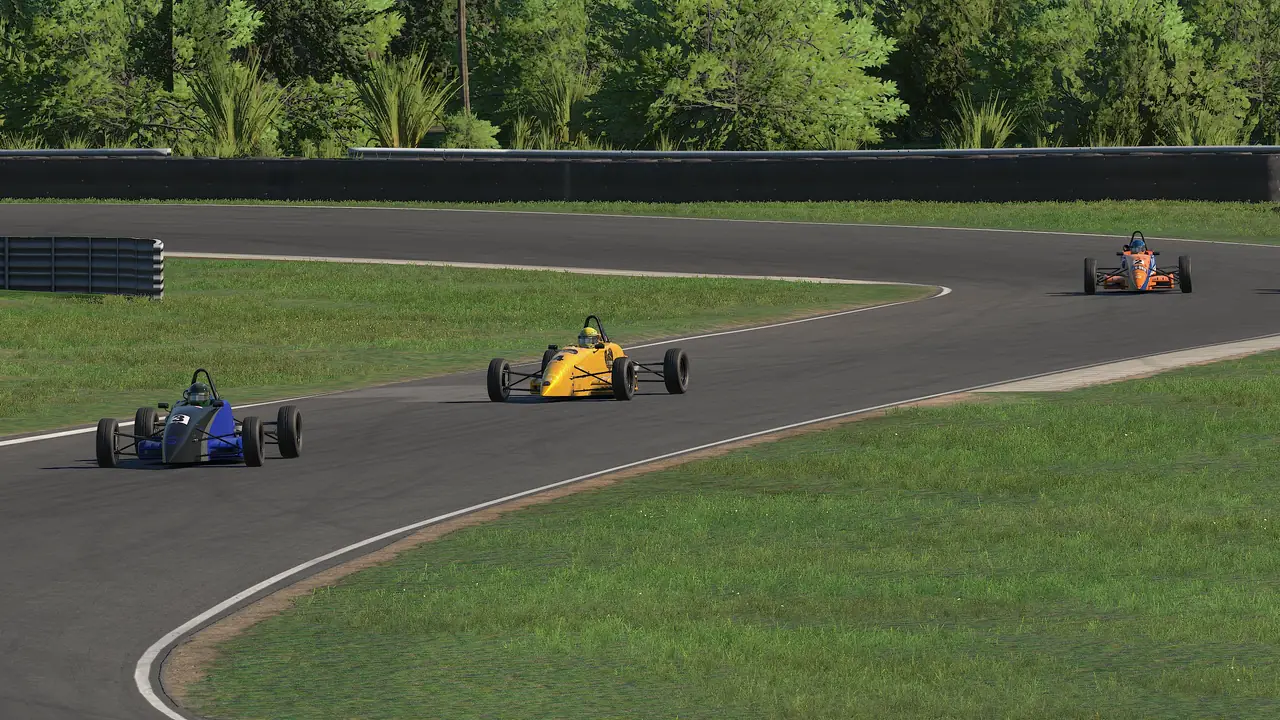
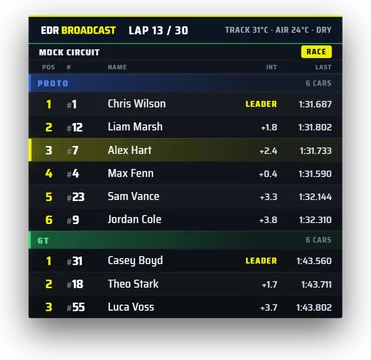





Your first race night.
- Start with FreeThe leaderboard, lower thirds, ticker, flags, grid intro and podium cover a first show.
- Try Pro when you want the cameras handledStart the 14-day trial in Settings, Account and updates for the Auto-Director, replay and incidents. No card.
- Keep a fallback sceneBefore every race, build one clean iRacing-only scene so the overlays can come off air at once.
- Know what happens if iRacing dropsOverlays hold the last good frame and the control window shows a warning. The app reconnects on its own once the session is live.
- Check the known issuesRead the known issues page before you go live.
Next: send the stream to Kick, YouTube or Twitch, build a complete OBS production, or fix a setup problem.
Run your own show.
EDR Broadcast is free to start on Windows. Try every Pro feature for 14 days from inside the app: no card, no automatic charge.